

Why Google Account Security is Critical in 2026
As we move through 2026, our digital footprint has never been larger. For most of us, a Google Account isn’t just an email address; it is the master key to our digital existence. It holds our private communications in Gmail, our most precious memories in Google Photos, our financial data via Google Pay, and often acts as the primary login for hundreds of third-party apps and services. With the rise of sophisticated AI-driven phishing attacks and automated credential stuffing, the security methods we used just a couple of years ago are no longer sufficient. Protecting your Google Account is the single most important step you can take for your online safety this year.
The Transition to a Passwordless Future: Google Passkeys
In 2026, the biggest shift in cybersecurity is the widespread adoption of Passkeys. Google has officially moved toward a passwordless standard, and for good reason. Passkeys are significantly more secure than traditional passwords because they are resistant to phishing and cannot be ‘guessed’ or leaked in a server breach.
What is a Passkey?
A passkey is a digital credential tied to your device (smartphone, tablet, or computer). Instead of typing a string of characters, you use your device’s biometric sensors—such as a fingerprint or facial recognition—or a local PIN to authenticate. The actual cryptographic key never leaves your device, meaning even if a hacker intercepts your login attempt, they get nothing useful.
How to Set Up Passkeys on Your Google Account
Setting up a passkey is the first thing you should do in 2026. Follow these steps:
- Open your browser and go to myaccount.google.com.
- On the left-hand menu (or top menu on mobile), select the Security tab.
- Under the “How you sign in to Google” section, click on Passkeys and security keys.
- Click the Create a passkey button.
- Google will prompt you to use your current device. Follow the on-screen instructions to verify your identity using your fingerprint, face, or screen lock PIN.
- Once confirmed, your device is now a passkey. The next time you log in, you won’t need to type a password.
Pro Tip: If you use multiple devices, such as a MacBook and an Android phone, set up a passkey on both. This ensures you have a backup way to access your account if one device is lost or stolen.
Strengthening Your Two-Factor Authentication (2FA)
While passkeys are the gold standard, many users still rely on Two-Factor Authentication (2FA). However, in 2026, not all 2FA methods are created equal. If you are still receiving 6-digit codes via SMS, you are vulnerable to SIM swapping attacks.
Why You Should Move Away from SMS 2FA
SMS-based 2FA is better than nothing, but it is the weakest form of multi-factor authentication. Hackers can trick mobile carriers into porting your phone number to a device they control. Once they have your number, they can intercept your security codes. In 2026, it is highly recommended to disable SMS 2FA in favor of more secure methods.
Better Alternatives: Authenticator Apps and Security Keys
- Google Authenticator or Authy: These apps generate time-based one-time passwords (TOTP) locally on your phone. They do not require a cellular signal and cannot be intercepted over the air.
- Google Prompt: This is the most convenient method. When you log in, a notification appears on your trusted phone asking, “Is it you trying to sign in?” You simply tap “Yes.”
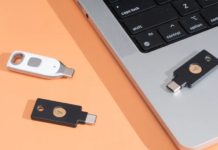
- Physical Security Keys: For the ultimate level of protection, use a hardware key like a YubiKey. These USB or NFC devices must be physically present to log in, making remote hacking virtually impossible.
Auditing Third-Party App Permissions
Over time, we all sign up for various apps and websites using the “Sign in with Google” button. By 2026, you likely have dozens, if not hundreds, of apps with access to your Google data. Some of these apps may have been abandoned by their developers, making them a security risk.
How to Clean Up App Access
- Go to the Security tab in your Google Account.
- Scroll down to Your connections to third-party apps and services.
- Click See all connections.
- Review the list carefully. If you see an app you no longer use, click on it and select Delete all connections.
- Pay close attention to apps that have “Full Account Access”—these should be limited to only the most trustworthy services.
Advanced Privacy Settings for 2026
Security is about keeping others out; privacy is about managing what Google itself knows about you. In 2026, Google has introduced more granular controls over your data. Keeping your account secure also means minimizing the data that could be exposed in a worst-case scenario.
Automated Data Deletion
You don’t need Google to keep your location history or web activity from five years ago. Set up auto-delete to clear this data regularly:
- Navigate to the Data & Privacy tab.
- Look for History settings.
- Select Web & App Activity and set the Auto-delete option to 3 months or 18 months.
- Do the same for Location History (now often called Timeline) and YouTube History.
Enhanced Safe Browsing
In 2026, Google’s Enhanced Safe Browsing feature uses real-time AI to protect you against increasingly complex phishing sites and malicious downloads. Enable this by going to the Security tab and toggling on Enhanced Safe Browsing. This provides faster, more proactive protection by sharing temporary security data with Google Chrome and Gmail.
The Worst-Case Scenario: Account Recovery
Many people secure their accounts so tightly that they end up locking themselves out. Account recovery is a vital part of your security strategy. If you lose your phone and your password, how do you get back in?
Setting Up a Recovery Safety Net
- Recovery Email: Ensure this is an active email address that is NOT another Gmail account (or if it is, ensure it has its own separate recovery path).
- Recovery Phone: Keep this updated. If you change your number, this is the first thing you must update in your Google settings.
- Backup Codes: This is the most overlooked step. Under the 2FA settings, generate Backup Codes. Print them out and keep them in a physical safe or a secure location. These 10 codes will get you into your account even if you lose your phone, your security key, and your passkey.
The Google Advanced Protection Program
For individuals at high risk—such as journalists, activists, business leaders, or tech enthusiasts who want the maximum possible security—Google offers the Advanced Protection Program. In 2026, this program is even more robust.
Enrolling in Advanced Protection does three things:
- Requires a physical security key or passkey: You cannot use SMS or even an authenticator app.
- Limits data access: Only verified Google apps and select third-party apps can access your Gmail or Drive data.
- Blocks unauthorized account access: If you lose access, Google performs a rigorous verification process that takes several days to ensure the person requesting access is truly you.
To join, visit landing.google.com/advancedprotection.
Final Checklist for Google Security in 2026
To summarize, here is your 2026 action plan to ensure your Google Account remains unhackable:
- Step 1: Create a Passkey on your primary smartphone and computer.
- Step 2: Disable SMS-based two-factor authentication.
- Step 3: Enable Google Prompt or an Authenticator app.
- Step 4: Generate and print Backup Codes.
- Step 5: Turn on Enhanced Safe Browsing for real-time AI threat protection.
- Step 6: Review and remove third-party apps with access to your account.
- Step 7: Set up auto-delete for your Location and Web activity.
Conclusion
Cybersecurity is not a “set it and forget it” task. As we’ve seen throughout 2026, threats evolve rapidly. By adopting Passkeys and moving away from legacy systems like SMS 2FA and simple passwords, you are putting yourself ahead of 99% of attackers. Take twenty minutes today to go through these steps; the peace of mind knowing your digital life is secure is worth every second.