

Why Your 2025 Security Habits Aren’t Enough for 2026
Let’s be honest: the digital landscape has shifted drastically over the last twelve months. It is now mid-2026, and the tools hackers use have evolved. We are no longer just fighting off basic phishing emails or simple password-cracking bots. Today, AI-driven social engineering can mimic the voice of your boss or generate a pixel-perfect replica of your banking login page in seconds.
If you are still relying on a single password—even a complex one—or using SMS-based two-factor authentication (2FA) as your primary line of defense, you are effectively leaving your front door unlocked in a neighborhood where everyone has a master key. In 2026, ‘good enough’ security is an invitation for data theft. This guide will walk you through the essential transition to Passkeys, the proper use of hardware security keys, and how to conduct a full security audit of your digital life.
The End of the Password Era: Enter Passkeys
By now, you’ve likely seen a prompt on your iPhone, Android, or Chrome browser asking if you want to ‘Create a Passkey.’ If you’ve been clicking ‘Not Now,’ it’s time to stop. Passkeys are the single biggest leap in consumer security in the last decade. Unlike a password, which is a string of characters stored on a server (and therefore hackable), a Passkey is a pair of cryptographic keys. One stays on your device, and the other is shared with the service.
The beauty of Passkeys is that they are phishing-resistant. Even if a hacker tricks you into visiting a fake website, your device won’t share the Passkey because the URL doesn’t match. Here is how to set them up on your primary devices in 2026.
How to Set Up Passkeys on Android and Windows
Google and Microsoft have gone ‘Passkey-first’ in 2026. Here is the workflow to secure your main accounts:
- Google Account: Navigate to your Google Account settings, select ‘Security,’ and then ‘Passkeys.’ Follow the prompt to ‘Create a Passkey’ on your current device. You will now be able to log in using your fingerprint, face scan, or screen lock PIN.
- Windows 11/12: Open ‘Settings’ > ‘Accounts’ > ‘Passkeys.’ Here you can manage all the Passkeys stored by Windows Hello. Ensure your laptop’s TPM (Trusted Platform Module) is active to keep these keys hardware-encrypted.
- Chrome Browser: When you sign into a supported site (like Amazon, PayPal, or LinkedIn), look for the ‘Sign in with a Passkey’ option in the security settings. Chrome will save this to your Google Password Manager, syncing it across your mobile and desktop devices.
How to Set Up Passkeys on iOS and MacOS
Apple’s ecosystem makes Passkeys incredibly seamless through iCloud Keychain.
- iOS (iPhone/iPad): Go to ‘Settings’ > ‘Passwords’ > ‘Password Options.’ Ensure ‘AutoFill Passwords and Passkeys’ is toggled on. When you visit a site like eBay or Kayak, the site will offer to create a Passkey. It is saved to your iCloud account and protected by FaceID.
- MacOS: Ensure you are signed into the same iCloud account. When you log in on Safari, you can use TouchID on your MacBook or the ‘Sign in with iPhone’ QR code to authenticate instantly.
Hardware Security Keys: The ‘Nuclear’ Option
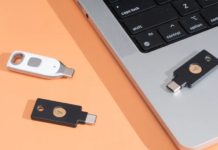
While Passkeys are great for everyday use, your ‘anchor’ accounts—your primary email, your banking, and your primary cloud storage—need something even stronger. This is where hardware security keys come in. In 2026, devices like the YubiKey 6 series or the Google Titan Key are the gold standard.
A hardware key is a physical USB-C, Lightning, or NFC device that you must physically touch or plug in to authorize a login. Even if a hacker has your password and your phone, they cannot get into your account without that physical piece of plastic in your hand.
Why You Need Two Keys
Pro Tip: Always buy two hardware keys. Register both to your most important accounts. Keep one on your keychain and one in a secure location at home (like a fireproof safe). If you lose your primary key and don’t have a backup registered, you could be locked out of your digital life forever.
Step-by-Step: The 2026 Digital Security Audit
Now that we have the tools, let’s perform a comprehensive audit. Set aside 30 minutes this weekend to run through this checklist.
Step 1: The ‘Pwned’ Check
Before securing your accounts, find out what is already compromised. Head to HaveIBeenPwned.com and enter your primary email addresses. Given the massive data breaches of 2024 and 2025, you’ll likely find you were part of a leak. If a site listed there still uses a password you use elsewhere, change it immediately.
Step 2: Ditch SMS 2FA Everywhere Possible
SMS 2FA is better than nothing, but ‘SIM swapping’—where a hacker tricks your carrier into porting your number to their device—is a rampant problem in 2026.
- Go to your Security settings on Instagram, X (Twitter), Facebook, and Discord.
- Turn off SMS 2FA.
- Switch to an Authenticator App (like Bitwarden, 1Password, or Raivo) or, better yet, a Passkey.
Step 3: Audit Your App Permissions
We often download apps, use them once, and forget they have access to our contacts, location, and photos.
- On Android: Go to ‘Settings’ > ‘Privacy’ > ‘Permission Manager.’ Look specifically for apps that have ‘Always Allow’ access to your location or microphone.
- On iOS: Go to ‘Settings’ > ‘Privacy & Security’ > ‘App Privacy Report.’ This tool (updated for 2026) shows you exactly how often apps have accessed your data in the last 7 days.
Defending Against AI-Powered Social Engineering
Technological defenses like Passkeys are only half the battle. In 2026, the ‘Human Firewall’ is more important than ever. AI can now generate highly convincing phishing emails that reference actual projects you are working on by scraping your public LinkedIn or X profile.
The ‘Safe Word’ Strategy
With AI voice cloning becoming a common tool for ‘Grandparent Scams’ or corporate wire transfer fraud, establish a ‘Safe Word’ or a ‘Challenge Question’ with your family and coworkers. If you receive a frantic call from a loved one asking for money or sensitive data, ask them a question only the real person would know. If they can’t answer, hang up immediately.
Verification via Secondary Channels
If you receive an urgent security alert via email from ‘Microsoft’ or ‘Apple,’ do NOT click the link in the email. Instead, open your browser, manually type in the website address, and check your account notifications there. The ‘urgent email’ is the number one vector for credential theft in 2026.
Summary Checklist for 2026
To keep your tech life secure, ensure you’ve ticked these boxes by the end of the month:
| Action Item | Priority |
|---|---|
| Enable Passkeys for Google, Microsoft, and Apple IDs | CRITICAL |
| Replace SMS 2FA with Authenticator Apps | HIGH |
| Purchase and setup 2x Hardware Security Keys | MEDIUM |
| Run a ‘HaveIBeenPwned’ scan on all emails | HIGH |
Final Thoughts
Securing your digital life in 2026 isn’t about being paranoid; it’s about being prepared. The shift from passwords to Passkeys is the most significant improvement in user experience and security we’ve seen in years. It makes your life easier—no more forgotten passwords—and it makes a hacker’s life significantly harder. Take the time today to lock down your accounts, and you’ll sleep much better tonight knowing your data is protected by more than just a string of characters and a prayer.