



If you Want to know, How to Increase RAM on a Laptop for free then it means your system’s existing RAM is not sufficient to fulfill your needs (mainly gaming needs).
Am I right?
If you like gaming, you want to play some high games like GTA 5, but low RAM always ruins your enjoyment and low RAM plays a role as a barrier between you and your Good Gaming Experience, so it’s high time to remove this barrier from your PC/Laptop.
Now don’t worry I am here for you and today I am going to show you how to increase RAM in Windows PC/Laptop.
So, without wasting time let’s see how you can Increase RAM in Windows PC in just a couple of minutes.
We are talking about a secret Windows software SOFT PERFECT RAM DISK which gives you virtual RAM for your individual use for any software it creates a disk partition of your RAM.
Softperfect RAM Disk is a free high-performance RAM disk application that lets you have a disk on your computer entirely in the memory which will provide you a significant boost in your gaming and overall experience.
NOTE: In this software, you have to create a disk of free memory of your RAM, and the disk is very useful for your laptop’s performance because it reserves the memory for your use only.
How to Increase RAM on Laptop for free
If you have a laptop or desktop with low RAM. It also depends on the RAM Management but if you want to play little high-end games or you want to increase your Windows PC performance for multitasking then RAMDisk can help you a lot.
Besides that, let me tell you this software reserves the RAM for you and gives you whenever you need it.
Here, you need to download the Softperfect RAMDisk software on your Windows PC and just install it.
The RAMDisk Download link is provided at the end of the post.
Once the installation is complete, open the RAMDisk software and click on the add button to create a RAMDisk that will work for you whenever you need it.
How to use RAMDISK Software
Step 1. Open this software and click on the + button.
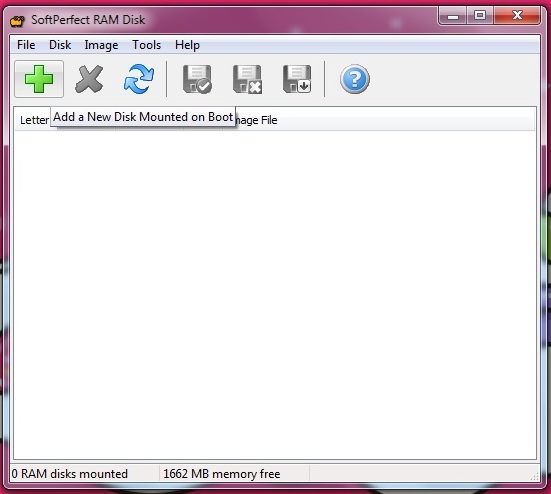
Step 2. See in the first picture, create a disk of free memory, and see in the below picture, I have almost 1662MB of free space in RAM and I have to create a disk from this memory.
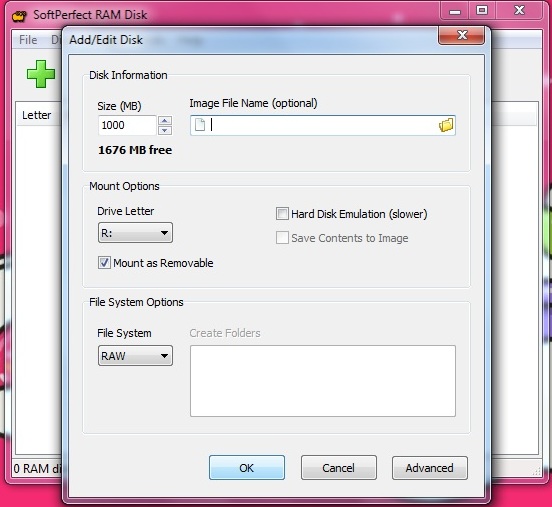
- Select the size of the disk which you want to create.
- Choose any drive letter.
- Select Mount as removable.
- Click on OK.
Step 3. In this picture, I have created a disk containing 1000MB of memory which is very useful for the performance of my laptop.
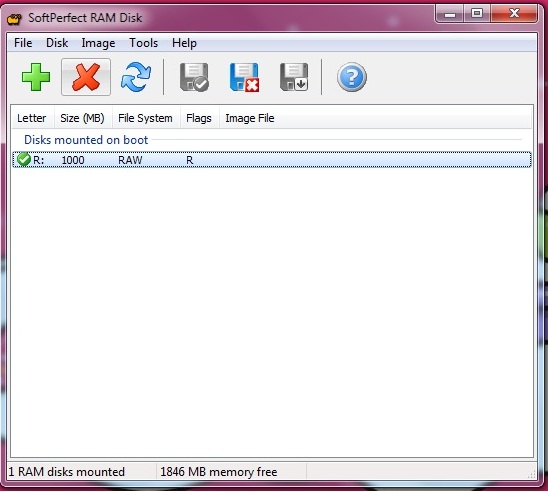
Now, I can play many high-ended games flawlessly because I have created a RAM disk partition for my personal use and this memory will work on specific software that I will choose this disk will work like a 1GB graphics card.
Remember one thing, you can create any size of the disk according to free space in your RAM.
- By clicking on ╳ icon, you can delete any created disk as well.